Access Point Setup
A wireless access point (AP) is a networking device that allows Wi-Fi-enabled devices to connect to a wired network using radio communication (IEEE 802.11). It acts as a bridge between wireless clients and the local area network (LAN).
In simple terms, an access point extends a wired network into the wireless domain.
Core Function
An access point performs three main roles:
-
Wireless–wired bridging
-
Connects wireless devices (laptops, phones, IoT devices) to Ethernet infrastructure.
-
Forwards frames between the wireless medium and the LAN.
-
-
Network access coordination
-
Manages association and authentication of clients.
-
Broadcasts a SSID (Service Set Identifier).
-
Controls channel usage and transmission timing.
-
-
Security enforcement
-
Implements Wi-Fi security protocols such as:
-
WPA2
-
WPA3
-
802.1X (enterprise authentication, like eduroam/govroam)
-
-
The goal for this session is too:
- Plug in the USB Wi-Fi adapter.
- Run:
dmesg | grep -i wlan - Verify the interface exists:
iw dev - Confirm AP mode support:
iw phy | grep -A10 "Supported interface modes" - Ensure wlan1 is unmanaged by NetworkManager:
nmcli device status - Start hostapd:
sudo hostapd /etc/hostapd/hostapd.conf - Confirm AP started:
AP-ENABLED - Verify AP interface:
iw dev wlan1 info - Confirm SSID broadcast: ssid MyHotspot-ddmm
- Connect a phone/laptop to “MyHotspot-ddmm”.
Plug in the TP-Link AC600
-
We are going to use the TP-Link AC600 USB 2.0 Wireless Adapter (datasheet https://docs.rs-online.com/39f9/A700000009276868.pdf)

-
Plug this into an available USB slot on the RPI and use
dmesgto look for the regisration of the device.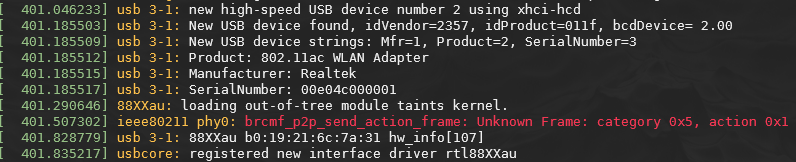
The
dmesgcommand shows kernel messages related to hardware detection and driver loading. After inserting the USB wireless adapter, the system detects the device, identifies it as a Realtek 802.11ac adapter, loads the rtl88XXau driver, and registers the wireless interface with the Linux networking subsystem. This confirms the adapter is ready to be configured as either a station or access point. -
We can then verify via,
iw,iwconfig,ifconfig,iwctlphy#1 Interface wlan1 ifindex 4 wdev 0x100000001 addr b0:19:21:6c:7a:31 type managed channel 11 (2462 MHz), width: 20 MHz, center1: 2462 MHz txpower 20.00 dBm phy#0 Interface wlan0 ifindex 3 wdev 0x1 addr d8:3a:dd:cf:4e:b3 ssid eduroam type managed channel 11 (2462 MHz), width: 20 MHz, center1: 2462 MHz txpower 31.00 dBmThe RPI shows two wireless interfaces:
wlan0(the internal Wi-Fi adapter connected to eduroam)- and
wlan1(the USB adapter).
Both are currently operating in managed mode, meaning they behave as wireless clients. In this lab,
wlan1will be reconfigured into access point mode so that other devices can connect to it. -
Before we do we should check that the hardware supports the access point mode. Infact, not all devices do have this capability
-
IBSS(ad-hoc)-
This is peer-to-peer wireless networking, where devices communicate directly without an access point.
-
Rarely used in modern networks, but useful conceptually for understanding infrastructure vs non-infrastructure Wi-Fi.
-
-
managed(station)-
This is the normal client mode, where the device connects to an access point.
-
Examples:
-
connecting to eduroam
-
joining a home Wi-Fi network
-
connecting a laptop to a hotspot
-
-
-
AP(Access Point)-
create a wireless network
-
broadcast an SSID
-
accept client associations
-
act as a bridge to the LAN
-
Without this capability, AP mode would not be possible.
-
-
monitor-
Monitor mode allows the adapter to:
-
capture raw 802.11 frames
-
perform packet analysis
-
support tools like Wireshark or tcpdump
-
-
-
Wi-Fi direct
-
P2P-clientconnects to a peer device -
P2P-GO(Group Owner) behaves similarly to a small AP
-
-
Set up Access Point with hostapd
-
You should already have your internet connection with eduroam so:
hostapd(Host Access Point Daemon) is a Linux service that enables a wireless interface to operate as an IEEE 802.11 access point.It is responsible for the wireless (Layer-2) functionality of the hotspot, including:
-
broadcasting the SSID
-
managing client association
-
handling authentication (e.g., WPA2-PSK)
-
controlling channel and radio parameters
In this lab, hostapd turns
wlan1into a Wi-Fi access point that client devices can connect to. -
-
Once installed, modify the following file,
sudo vim /etc/hostapd/hostapd.conf -
Then start
hostapdmanually: -
In another terminal, you can check
iw devand you should see:phy#1 Interface wlan1 ifindex 4 wdev 0x100000001 addr b0:19:21:6c:7a:31 ssid MyHotspot type AP channel 11 (2462 MHz), width: 20 MHz, center1: 2462 MHz txpower 20.00 dBm phy#0 Interface wlan0 ifindex 3 wdev 0x1 addr d8:3a:dd:cf:4e:b3 ssid eduroam type managed channel 11 (2462 MHz), width: 20 MHz, center1: 2462 MHz txpower 31.00 dBmThe
hostapddaemon configureswlan1as an IEEE 802.11 access point. The message “AP-ENABLED” indicates the interface is now beaconing the SSID. Theiw devcommand confirms the interface type is AP and shows the broadcast SSID and operating channel.We have AP that is visible, but it is unlikely to provide IP addresses, yet! Running
ip addr show wlan1will confirm this as there is no IP.4: wlan1: <NO-CARRIER,BROADCAST,MULTICAST,UP> mtu 2312 qdisc mq state DOWN group default qlen 1000 link/ether b0:19:21:6c:7a:31 brd ff:ff:ff:ff:ff:ff inet6 fe80::b219:21ff:fe6c:7a31/64 scope link valid_lft forever preferred_lft forever -
Run the following to set an IP note, we want to have the gateway address
4: wlan1: <NO-CARRIER,BROADCAST,MULTICAST,UP,LOWER_UP> mtu 2312 qdisc mq state DORMANT group default qlen 1000 link/ether b0:19:21:6c:7a:31 brd ff:ff:ff:ff:ff:ff inet 192.168.10.1/24 scope global wlan1 valid_lft forever preferred_lft forever inet6 fe80::b219:21ff:fe6c:7a31/64 scope link valid_lft forever preferred_lft forever -
We will now install
dnsmasqusingsudo apt install dnsmasqdnsmasqis a lightweight DHCP and DNS server commonly used on small networks and embedded systems.In this lab, dnsmasq provides Layer-3 configuration for devices that connect to the access point, specifically:
-
assigning IP addresses (DHCP)
-
providing a default gateway
-
optionally providing DNS resolution
Without
dnsmasq(or another DHCP server), clients could connect to the Wi-Fi network but would not receive an IP address. -
-
Once installed create the following file
sudo vim /etc/dnsmasq.d/hotspot.conf -
Restart the
dnsmasq,sudo systemctl restart dnsmasq -
Check the status
systemctl status dnsmasq● dnsmasq.service - dnsmasq - A lightweight DHCP and caching DNS server Loaded: loaded (/lib/systemd/system/dnsmasq.service; enabled; preset: enabled) Active: active (running) since Mon 2026-02-09 10:43:32 GMT; 1s ago Process: 6561 ExecStartPre=/usr/share/dnsmasq/systemd-helper checkconfig (code=exited, status=0/SUCCESS) Process: 6566 ExecStart=/usr/share/dnsmasq/systemd-helper exec (code=exited, status=0/SUCCESS) Process: 6572 ExecStartPost=/usr/share/dnsmasq/systemd-helper start-resolvconf (code=exited, status=0/SUCCESS) Main PID: 6571 (dnsmasq) Tasks: 1 (limit: 9577) CPU: 22ms CGroup: /system.slice/dnsmasq.service └─6571 /usr/sbin/dnsmasq -x /run/dnsmasq/dnsmasq.pid -u dnsmasq -7 /etc/dnsmasq.d,.dpkg-dist,.dpkg-ol> Feb 09 10:43:32 raspberrypi systemd[1]: Starting dnsmasq.service - dnsmasq - A lightweight DHCP and caching DNS se> Feb 09 10:43:32 raspberrypi dnsmasq[6571]: started, version 2.90 cachesize 150 Feb 09 10:43:32 raspberrypi dnsmasq[6571]: compile time options: IPv6 GNU-getopt DBus no-UBus i18n IDN2 DHCP DHCPv> Feb 09 10:43:32 raspberrypi dnsmasq-dhcp[6571]: DHCP, IP range 192.168.10.50 -- 192.168.10.150, lease time 12h Feb 09 10:43:32 raspberrypi dnsmasq[6571]: reading /etc/resolv.conf Feb 09 10:43:32 raspberrypi dnsmasq[6571]: using nameserver 8.8.8.8#53 Feb 09 10:43:32 raspberrypi dnsmasq[6571]: using nameserver 8.8.4.4#53 Feb 09 10:43:32 raspberrypi dnsmasq[6571]: read /etc/hosts - 7 names Feb 09 10:43:32 raspberrypi systemd[1]: Started dnsmasq.service - dnsmasq - A lightweight DHCP and caching DNS ser> lines 1-21/21 (END)Most important line is the one that shows the hostspot.conf, look for the
...IP range 192.168.10.50line -
Connect with your phone or laptop
Monitoring and stats
-
You should notice in the terminal where you are currently running
sudo hostapd /etc/hostapd/hostapd.confyou should see an output nowwlan1: interface state UNINITIALIZED->ENABLED wlan1: AP-ENABLED wlan1: STA f8:fe:5e:8f:69:25 IEEE 802.11: associated wlan1: AP-STA-CONNECTED f8:fe:5e:8f:69:25 wlan1: STA f8:fe:5e:8f:69:25 RADIUS: starting accounting session 539B2D7D6134DFC3 wlan1: STA f8:fe:5e:8f:69:25 WPA: pairwise key handshake completed (RSN) wlan1: EAPOL-4WAY-HS-COMPLETED f8:fe:5e:8f:69:2 -
You can also see signal strength other stats using
iw dev wlan1 station dump -
Additionally, you can see information from dnsmasq too,
cat /var/lib/misc/dnsmasq.leases -
Try also running
sudo tcpdump -i wlan, to see live output fromtcpdumpwhich shows,arp,dhcp,dnsandtcptraffic.Output
tcpdump: verbose output suppressed, use -v[v]... for full protocol decode
listening on wlan1, link-type EN10MB (Ethernet), snapshot length 262144 bytes
11:15:42.740455 EAPOL key (3) v2, len 95
11:15:42.748024 EAPOL key (3) v2, len 117
11:15:42.748153 EAPOL key (3) v2, len 151
11:15:42.760782 EAPOL key (3) v2, len 95
11:15:42.796449 IP6 fe80::fafe:5eff:fe8f:6925 > ff02::16: HBH ICMP6, multicast listener report v2, 2 group record(s), length 48
11:15:42.797061 IP 0.0.0.0.bootpc > 255.255.255.255.bootps: BOOTP/DHCP, Request from f8:fe:5e:8f:69:25 (oui Unknown), length 294
11:15:42.797251 IP 192.168.10.1.bootps > 192.168.10.143.bootpc: BOOTP/DHCP, Reply, length 300
11:15:42.811777 IP6 fe80::fafe:5eff:fe8f:6925 > ff02::16: HBH ICMP6, multicast listener report v2, 2 group record(s), length 48
11:15:42.828656 IP 0.0.0.0.bootpc > 255.255.255.255.bootps: BOOTP/DHCP, Request from f8:fe:5e:8f:69:25 (oui Unknown), length 304
11:15:42.833784 IP 192.168.10.1.bootps > 192.168.10.143.bootpc: BOOTP/DHCP, Reply, length 302
11:15:42.938351 IP 192.168.10.143 > 224.0.0.252: igmp v2 report 224.0.0.252
11:15:42.940661 ARP, Request who-has 192.168.10.1 tell 192.168.10.143, length 28
11:15:42.940681 ARP, Reply 192.168.10.1 is-at b0:19:21:6c:7a:31 (oui Unknown), length 28
11:15:42.944898 IP 192.168.10.143.47143 > 192.168.10.1.domain: 44737+ [1au] A? 0.nixos.pool.ntp.org. (49)
11:15:42.982696 IP 192.168.10.1.domain > 192.168.10.143.47143: 44737 4/0/1 A 185.57.191.230, A 88.80.187.85, A 131.111.8.60, A 139.162.224.201 (113)
11:15:42.993537 IP 192.168.10.143.50399 > 192.168.10.1.domain: 41106+ [1au] AAAA? 0.nixos.pool.ntp.org. (49)
11:15:42.993582 IP 192.168.10.1.domain > 192.168.10.143.50399: 41106 0/1/1 (131)
11:15:42.999166 IP 192.168.10.143.5355 > 224.0.0.252.5355: UDP, length 26
11:15:42.999166 IP6 fe80::fafe:5eff:fe8f:6925.5355 > ff02::1:3.5355: UDP, length 26
11:15:43.009168 IP 192.168.10.143.48070 > 230.191.57.185.no-ptr.as201971.net.ntp: NTPv4, Client, length 48
11:15:43.057231 IP6 fe80::fafe:5eff:fe8f:6925 > ff02::16: HBH ICMP6, multicast listener report v2, 1 group record(s), length 28
11:15:43.244718 IP 192.168.10.143.5355 > 224.0.0.252.5355: UDP, length 26
11:15:43.244718 IP6 fe80::fafe:5eff:fe8f:6925.5355 > ff02::1:3.5355: UDP, length 26
11:15:43.494484 IP 192.168.10.143.5355 > 224.0.0.252.5355: UDP, length 26
11:15:43.494485 IP6 fe80::fafe:5eff:fe8f:6925.5355 > ff02::1:3.5355: UDP, length 26
11:15:43.994839 IP6 fe80::fafe:5eff:fe8f:6925 > ip6-allrouters: ICMP6, router solicitation, length 16
11:15:47.718184 IP6 fe80::fafe:5eff:fe8f:6925 > ip6-allrouters: ICMP6, router solicitation, length 16
11:15:47.986992 ARP, Request who-has 192.168.10.143 tell 192.168.10.1, length 28
11:15:47.989708 ARP, Reply 192.168.10.143 is-at f8:fe:5e:8f:69:25 (oui Unknown), length 28
11:15:51.953157 IP 192.168.10.143 > 224.0.0.252: igmp v2 report 224.0.0.252
11:15:53.248202 IP 192.168.10.143.53432 > 88-80-187-85.ip.linodeusercontent.com.ntp: NTPv4, Client, length 48
11:15:55.299073 IP6 fe80::fafe:5eff:fe8f:6925 > ip6-allrouters: ICMP6, router solicitation, length 16
11:16:03.500247 IP 192.168.10.143.53640 > pool.ntp0.cam.ac.uk.ntp: NTPv4, Client, length 48
11:16:11.146298 IP6 fe80::fafe:5eff:fe8f:6925 > ip6-allrouters: ICMP6, router solicitation, length 16
11:16:13.749327 IP 192.168.10.143.53755 > 139-162-224-201.ip.linodeusercontent.com.ntp: NTPv4, Client, length 48
11:16:19.091093 ARP, Request who-has 192.168.10.1 tell 192.168.10.143, length 28
11:16:19.091113 ARP, Reply 192.168.10.1 is-at b0:19:21:6c:7a:31 (oui Unknown), length 28
11:16:24.004094 IP 192.168.10.143.43001 > 192.168.10.1.domain: 14275+ [1au] A? 1.nixos.pool.ntp.org. (49)
11:16:24.004094 IP 192.168.10.143.60440 > 192.168.10.1.domain: 22279+ [1au] AAAA? 1.nixos.pool.ntp.org. (49)
11:16:24.004261 IP 192.168.10.1.domain > 192.168.10.143.60440: 22279 0/1/1 (131)
11:16:24.024810 IP 192.168.10.1.domain > 192.168.10.143.43001: 14275 4/0/1 A 193.150.34.2, A 185.137.221.158, A 78.141.201.161, A 139.162.242.115 (113)
11:16:24.028501 IP 192.168.10.143.53005 > time.rdg.uk.as44574.net.ntp: NTPv4, Client, length 48
11:16:34.248880 IP 192.168.10.143.44679 > 185.137.221.158.ntp: NTPv4, Client, length 48
11:16:42.596456 IP6 fe80::fafe:5eff:fe8f:6925 > ip6-allrouters: ICMP6, router solicitation, length 16
11:16:44.497808 IP 192.168.10.143.51552 > mail.aster.edu.pl.ntp: NTPv4, Client, length 48
Summary
The access point manages wireless association, while dnsmasq assigns IP addresses. Tools like iw, hostapd, and dnsmasq allow observation of client connections at different layers of the networking stack.
SUCCESS! We will look at routing next!